
# Taking Time Off
Workers within a company that want to take time off first need to have it approved by their line manager. The initial step is to submit a Time Off request. A Time Off request is composed of the following information:
- Duration type (multiple days or less than a day)
- Date(s)
- Type (vacation, situational or other)
- Comment
# Step-by-step
In the sidebar menu, click on Time Off

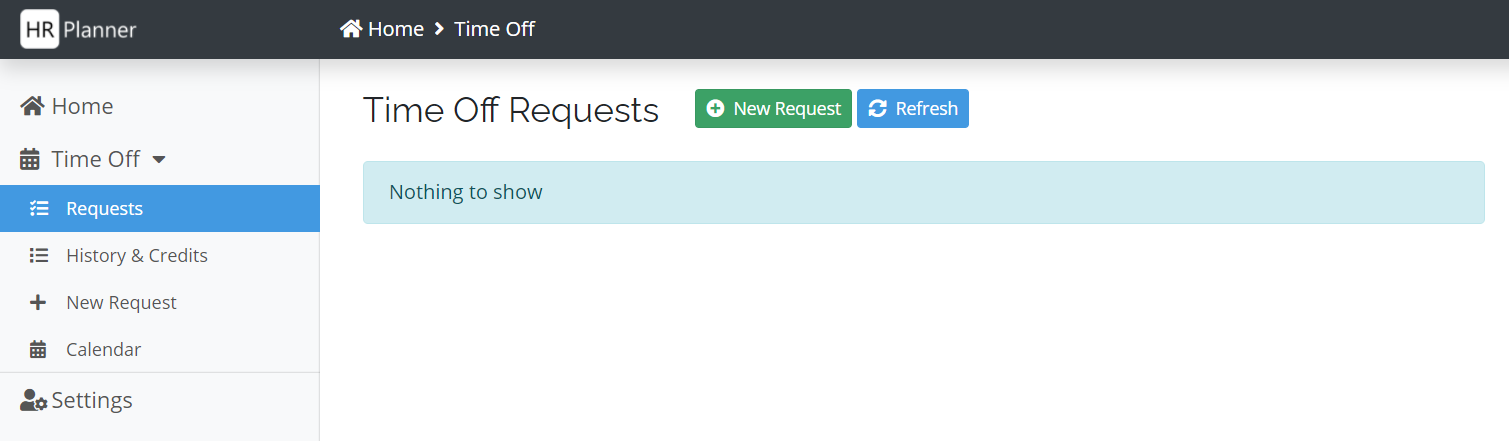
The page displays the requests you have made. Click on the New Request button (on the page or in the sidebar menu).
Select the duration of your new time off. Two main types are possible:
- less than a day (depending on your company settings, this could only be 1/2 day or more options)
- one day or more (represented by Full Day(s))

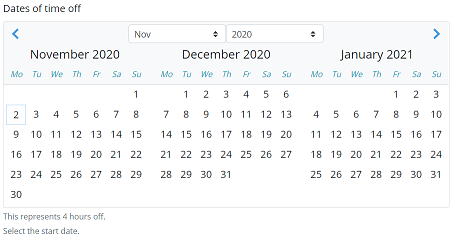
Choose the day(s) of your time off. Depending on the duration chosen, you will have to select one or two days in the calendar:
If you chose a time off less than a day, you select a single day in the calendar
If you chose a time off of a full day or more, you select consecutively two days in the calendar
💡 TIP
If you want to take a single full day off, you need to select twice the same date (start date and end date)
The number of days counted for your time off will be based on the days of your normal schedule. For instance, if you select a week starting on a Monday till a Friday but you don't work on Wednesdays (as per your settings), only 4 days will be counted.
Choose the type of Time Off. If you want to go on holiday, your vacation balance on the date of your time off needs to be sufficiently credited.
Your vacation balance is updated as you select the start date of your time off. You cannot choose the Vacation type if the balance is not sufficient.

IMPORTANT
Your company might have defined other types of time off requests. These do not count towards your vacation balance.
Provide a comment for your line manager. This is particularly useful for situational (bereavement, medical, sick leave, ...).
Click Submit to send your time off request to your line manager.